
Last modified: 13/05/2025
Overview
This document provides step-by-step instructions to create a professional email account (e.g., name@yourdomain.co.za) using cPanel. It also explains how to access your email via Webmail or configure it on devices (e.g., phones, computers).
Create an Email Account
- Log in to cPanel
- Open your web browser and navigate to your cPanel login URL (e.g., https://cpanel.yourdomain.co.za).
- Enter your cPanel username and password.
- If you do not have your cPanel login details, you can sign in to the customer dashboard(https://portal.passantbyte.co.za) to find your credentials.
- Access Email Accounts
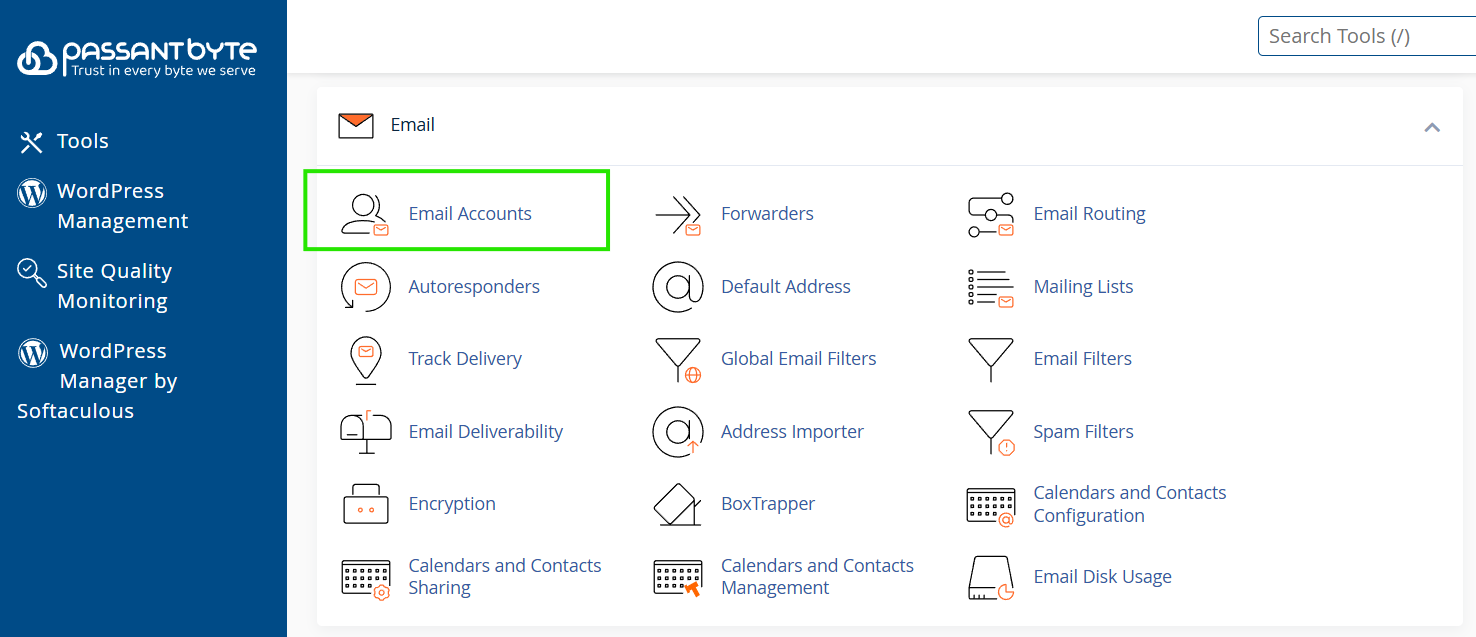
- In the cPanel dashboard, locate the Email section.
- Click Email Accounts.
- Create a New Email Address
-
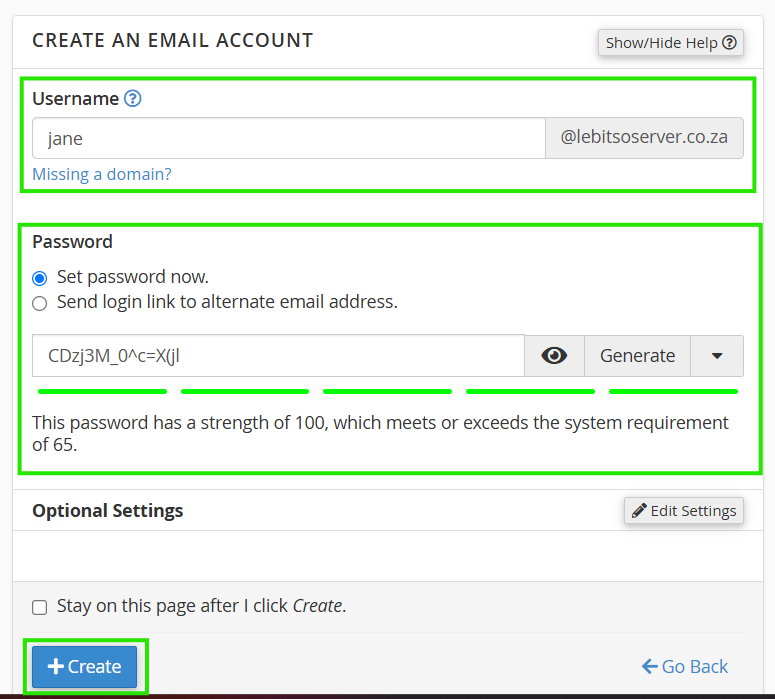
Under Create a New Email Account, enter the following:
-
Username: Type the desired email prefix (e.g., info for info@yourdomain.co.za).
-
Password: Create a strong password (use the Password Generator tool for assistance).
-
- Click Create.
-
- Confirmation
- A success message will appear. Your email account is now active.
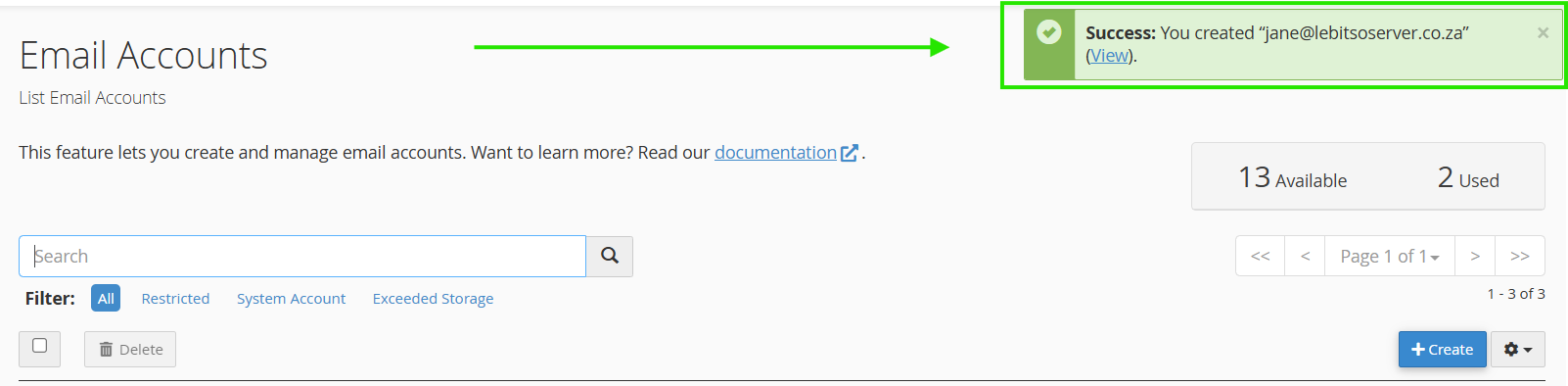
- A success message will appear. Your email account is now active.
Access Your Email via Webmail
- Open Webmail
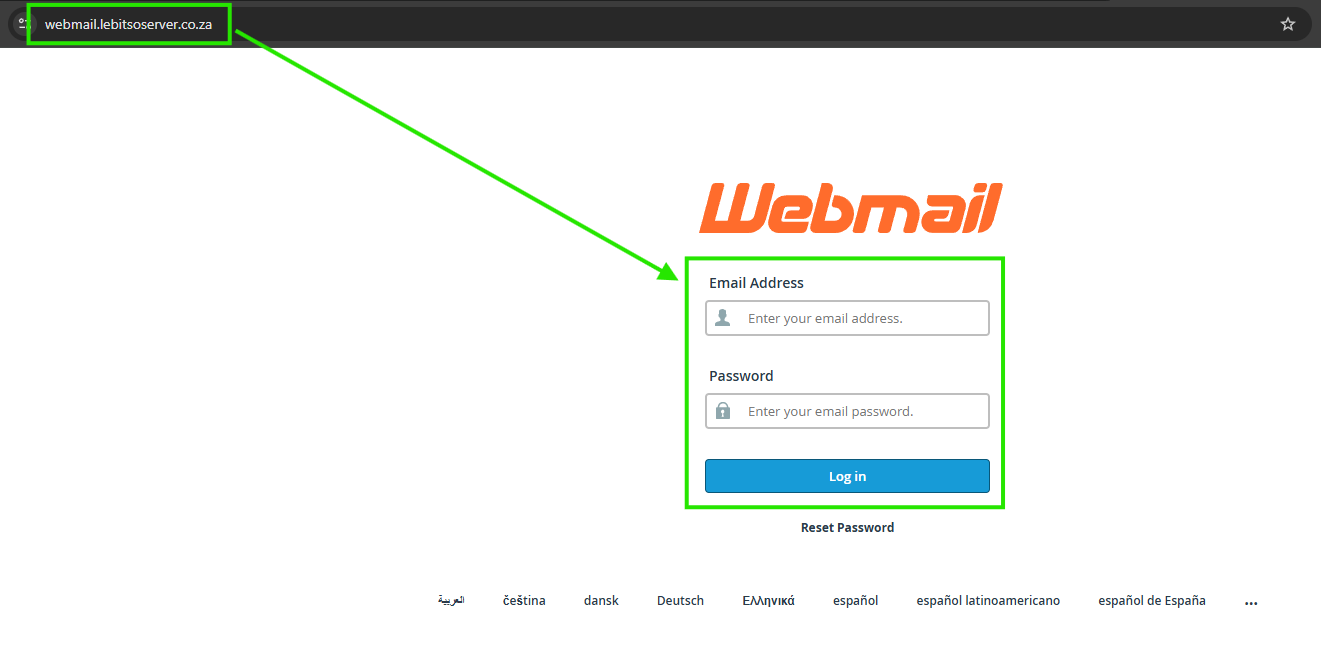
- In your browser, go to: webmail.yourdomain.co.za
Replace yourdomain.co.za with your actual domain name.
- In your browser, go to: webmail.yourdomain.co.za
- Log In
- Email Address: Enter your full email address (e.g., info@yourdomain.co.za).
- Password: Enter your email account password.
- Click Log In.
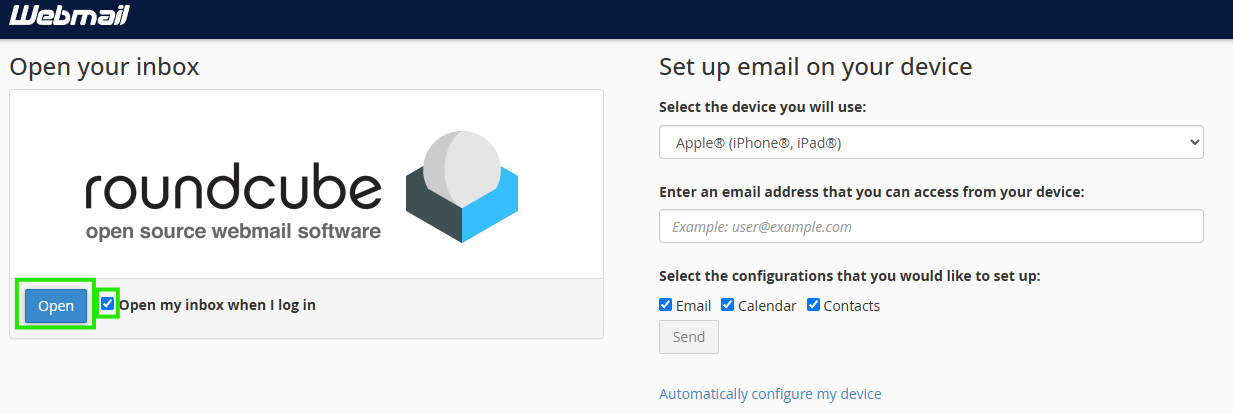
- Select Open my inbox when I log in, and click Open.
Configure Email on Mobile Devices
For iOS/Android Devices
- Open Email Settings
- Go to your device’s Settings > Accounts > Add Account.
- Select IMAP.
- Enter Server Details
- Username: Full email address (e.g., info@yourdomain.co.za).
- Password: Your email account password.
- Incoming Server (IMAP):
- Server: mail.yourdomain.co.za
- Port: 993 (SSL enabled)
- Outgoing Server (SMTP):
- Server: mail.yourdomain.co.za
- Port: 465 (SSL enabled)
- Complete Setup
- Follow on-screen prompts to finish.
Please check these links for more device-specific setup
- Apple Mobile:
- Android Mobile:
Mail Client Settings
If you do not see an auto-configuration script for your client in the list above, you can manually configure your mail client using the settings below. We recommend using IMAP and SMTP for your email account rather than ActiveSync unless you are on Android and need calendar and contacts support or push updates.
Secure SSL/TLS Settings (Recommended)
Replace all instances of "yourdomain.co.za" with your actual domain name
- Username: yourname@yourdomain.co.za
- Password: Use the email account’s password.
- Incoming Server: mail.yourdomain.co.za
- IMAP Port: 993
- Outgoing Server: mail.yourdomain.co.za
- SMTP Port: 465
IMAP and SMTP require authentication.
